

"Unable to Check for Update" Error– The Apple Watch Mystery Solved
The Summary
If your Apple Watch refuses to update and shows an “Unable to Check for Update” error, the problem might not be your watch at all. Often, your Apple Watch is waiting for its “partner”—your iPhone—to update first. This post explains why this happens and how to fix it without the headache.
This very issue happened to me.
Before touching your watch settings, check your phone.
On your iPhone, go to Settings > General > Software Update.
If an update is available (e.g., iOS 26.4), install it immediately.
Once the iPhone reboots, go back to the Watch App and try the update again.
Pros: Fixes the root cause 90% of the time.
Cons: Requires 20–30 minutes of “down time” while the phone updates.
Why Does This Error Happen?

Your Apple Watch and iPhone are a team. For them to communicate securely and track your health data accurately, they need to speak the same “language.” When Apple releases a major software update (like the recent jump to version 26.4), the iPhone must learn the new language first.
If your iPhone is even one minor version behind, it won’t be able to “authorize” the update for your watch, resulting in that frustrating loop: Checking for update… Error.
The Unable to Check for Update error usually occurs when a partial or corrupted update file is stuck in your iPhone’s storage, preventing a fresh handshake with your watch.
Step-by-Step Fixes (Ranked by Ease)
To break the Unable to Check for Update loop, follow these three verified steps to clear the communication between your iPhone and Series 11.
Option 1: The "iPhone First" Rule (Most Likely Fix)
Before touching your watch settings, check your phone.
-
On your iPhone, go to Settings > General > Software Update.
-
If an update is available (e.g., iOS 26.4), install it immediately.
-
Once the iPhone reboots, go back to the Watch App and try the update again.
-
Pros: Fixes the root cause 90% of the time.
-
Cons: Requires 20–30 minutes of “down time” while the phone updates.
Option 2: Delete the "Stuck" Update File
Sometimes a half-downloaded, corrupted file is blocking the way.
Open the Watch App on your iPhone.
Go to General > Storage.
Look for a file labeled “Software Update.” Swipe left and tap Delete.
Restart both your phone and watch, then try again.
Pros: Clears out “digital cobwebs” without resetting your data.
Cons: You’ll have to wait for the download to start from 0%.
Option 3: Bypass the Phone (The Direct Method)
Did you know your watch can update itself?
Place your watch on its charger (must be at least 50% charged).
On the watch, go to Settings > General > Software Update.
Tap Install.
Pros: Useful if the iPhone app is acting up.
Cons: Harder to read the small text on the watch face.
By resolving the Unable to Check for Update error, you’ve ensured your health data remains accurate and flows seamlessly to your iPhone.
Now that we’ve solved the Unable to Check for Update mystery, let’s look at how to use that new 1–10 Effort Scale for your next workout.
John’s Discovery Tip
The Power of the 1–10 Scale

Now that we’ve solved the Unable to Check for Update mystery, let’s look at how to use that new 1–10 Effort Scale for your next workout.
You’ll notice the ‘Effort’ prompt now uses a 1 to 10 scale. For my clients, I recommend aiming for a 7 or 8 during resistance training. This is ‘Hard’ enough to build muscle and bone density without the high injury risk of a ’10’ every day.
In previous versions, the watch used descriptive words like “Moderate,” “Hard,” or “All Out.” With the current update, Apple has shifted to a 1 to 10 numeric scale (Rate of Perceived Exertion, or RPE), which is exactly what we professional trainers and kinesiologists use.
How the New Scale Works:
When you finish your resistance session and hit “End,” you’ll see a slider.
1–3: Light (Easy, conversational)
4–6: Moderate (Breathing harder, but sustainable)
7–8: Hard (Difficult to talk, high effort)
9–10: All Out (Max effort, couldn’t do another rep)
The Pro Move: Consistent 7s and 8s lead to a ‘Steady’ Training Load, which is the sweet spot for long-term health and fat loss!
Final Thoughts
Tech Should Support Your Goals, Not Block Them
It’s easy to feel frustrated when a “simple” update turns into a technical loop. Remember: these updates aren’t just about flashy new icons. They often include critical improvements to how your watch monitors your heart rate variability (HRV) and active calories burned.
By following this guide, you’ve not only bypassed the Unable to Check for Update screen but also ensured your Series 11 is ready to track your health metrics accurately.
If you ever feel stuck, don’t let it derail your day. Take a deep breath, follow these steps, and get back to what really matters—your health and your next walk.
Need a hand? If you’ve tried these steps and your Series 11 is still giving you trouble, feel free to leave a comment below or reach out!
Disclaimer
This article reflects my personal experience and is not medical advice.
Recommended Resources
Apple Watch
About the Author
John Coldrick, B.Sc., founded Coldrick Health & Fitness out of a deep commitment to seeing his clients succeed.
He is a certified Personal Training Specialist through canfitpro and also holds a Healthy Eating & Weight Loss coaching certificate from the same organization.
Based in Sundance, Calgary, John’s coaching is defined by the genuine care he has for those he serves.
He combines his scientific background from the University of New Brunswick with a hands-on approach to help the 50+ community build sustainable habits and maximize their longevity through data-driven tools like the Apple Watch.
John's Favorite Products
Transparency is key to my coaching. I personally use and discover value in these products before recommending them. If you purchase through the links below, I may earn a small commission that helps support this site at no extra cost to you.
The Kitchen Workhorse
I love this knife!
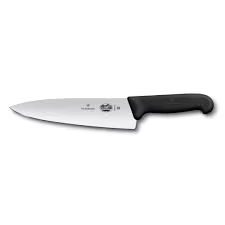
The Victorinox Fibrox 8″ Chef’s Knife is arguably the most cost-effective tool for anyone starting a healthy eating journey. While it doesn’t have the flashy look of expensive forged steel, its performance is legendary among professional chefs for its ergonomic grip and razor-sharp edge.
I’ve owned this knife for at least 5 years, and it’s my favorite. It’s light, sharp, and well balanced, and the non-slip grip makes the knife feel safe in my hands.
This is my go-to knife when preparing vegetables for the stir-frying.
Best For: All-purpose chopping, slicing, and dicing of dense vegetables.
Key Feature: The non-slip Fibrox handle ensures safety even when your hands are wet—a common occurrence when prepping fresh produce.
Maintenance: It is incredibly easy to hone and sharpen, making it a “forever” tool if treated well.
I’ve discovered that having one truly sharp (actually, I have 2 of these) reliable knife makes the difference between enjoying meal prep and dreading it. I prioritize this specific Victorinox because it’s a ‘workhorse’—it’s affordable enough to be your first ‘real’ knife, but high-quality enough that you’ll still be using it ten years from now.
Get a Free Consultation Call
Start your transformation today. Claim your free, no-obligation session and discover your personalized health results now!